I wanted to quickly jot down something I learned over the weekend that is helping me automate the process of both choosing which book to read next, as well as actually going through the steps of looking the book up at the library and placing the request.
Some might say my biggest hobby is adding books to my “Want to Read” list on Goodreads:

When I finish I book I would typically go to my “Want to Read” list, look at a title near the top of the list (default is sorted to show newest added) and then check my libraries to see if they had copies of the book, and look for the format I wanted.
I prefer e-book for most reads, but also listen to a lot of audiobooks depending on the format, and reserve good old fashioned physical books when the other two aren’t available.
The first issue I realized with this approach is that the recency bias leaves the majority of books in purgatory of me never scrolling all the way down to see them again. I added it at some point, so I must have seen, heard, or read something about the book making me want to learn more.
I learned you can randomize the order of books being displayed by adding “&sort=random” to the end of the URL when viewing your list:

Issue #1 resolved.
The second “issue” was more a pain of having to jump back and forth between tabs to look up books and their formats.
The “Library Extension” browser extension came to the rescue. This allows you to add in your library catalog (~5,000 currently supported) and will start searching for the books displayed on common book webpages (goodreads, amazon, etc.). You can see the extension results on the right hand side of the screen, along with the formats available as well as expected wait time.
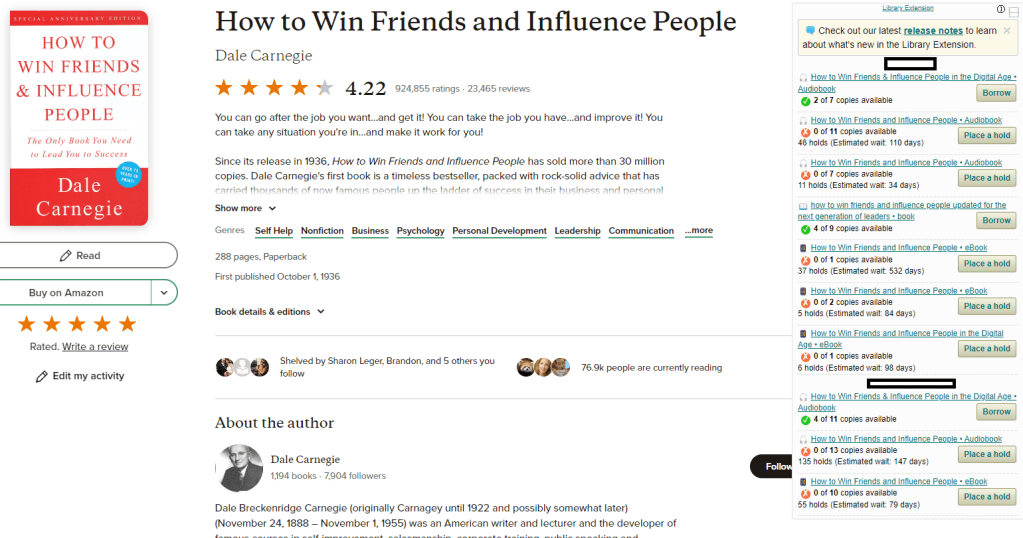

Clicking on the “Borrow” or “Place a hold” button opens a new tab to the library catalog webpage where you can either place the hold or actually place the order for the book.
If you’re frustrated with either of the above I hope this helps!
- Chrome (Chrome, Brave, etc.): https://chrome.google.com/webstore/detail/library-extension/chkgcmmjoejpekoegkedcpifgfhpjmec
- Firefox: https://addons.mozilla.org/en-US/firefox/addon/libraryextension/

 The Personal Blog of Sean Goodwin